Add the extension to Chrome
Until a public Chrome Web Store link is available, install the development build from the project source:
- Download or clone the project from GitHub.
- Run
npm install, thennpm run build:chrome. - Open
chrome://extensions/and enable Developer mode. - Click Load unpacked and choose the generated
distfolder. - Pin Odoo AI Companion from Chrome's Extensions menu.
Connect an AI provider
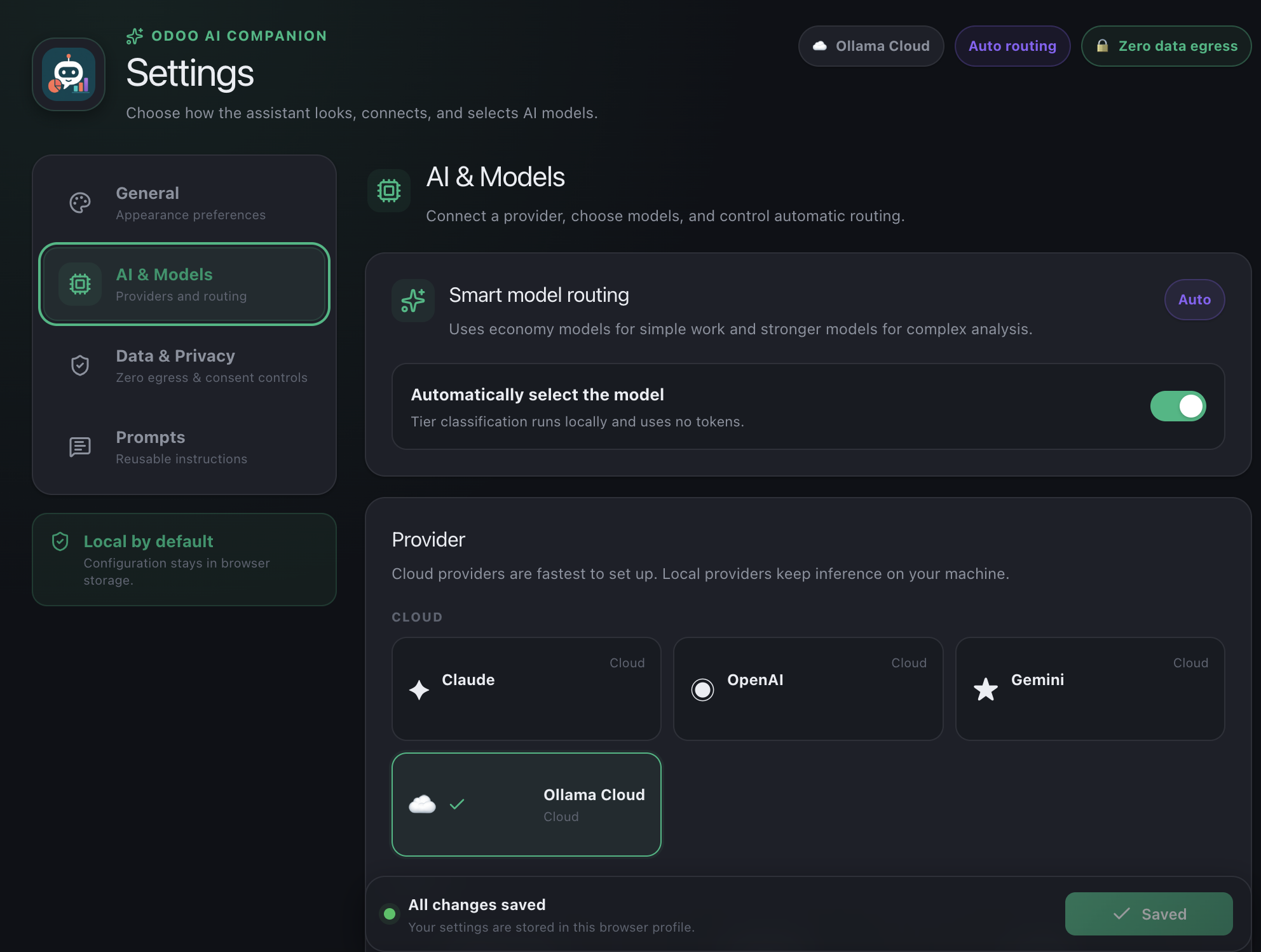
The options page opens after first installation. Choose one provider and supply the configuration for your own account or local server.
Choose Claude, OpenAI, Google Gemini, or Ollama Cloud. Enter your provider API key and select a supported model.
Choose Ollama, LM Studio, or LocalAI and confirm that its endpoint is running and reachable.
- Open AI & Models.
- Select the provider you want to use.
- Enter the API key or endpoint URL.
- Choose a model. For Agent Mode, prefer one with reliable tool calling.
- Save the settings.
Optional: personalize the interface
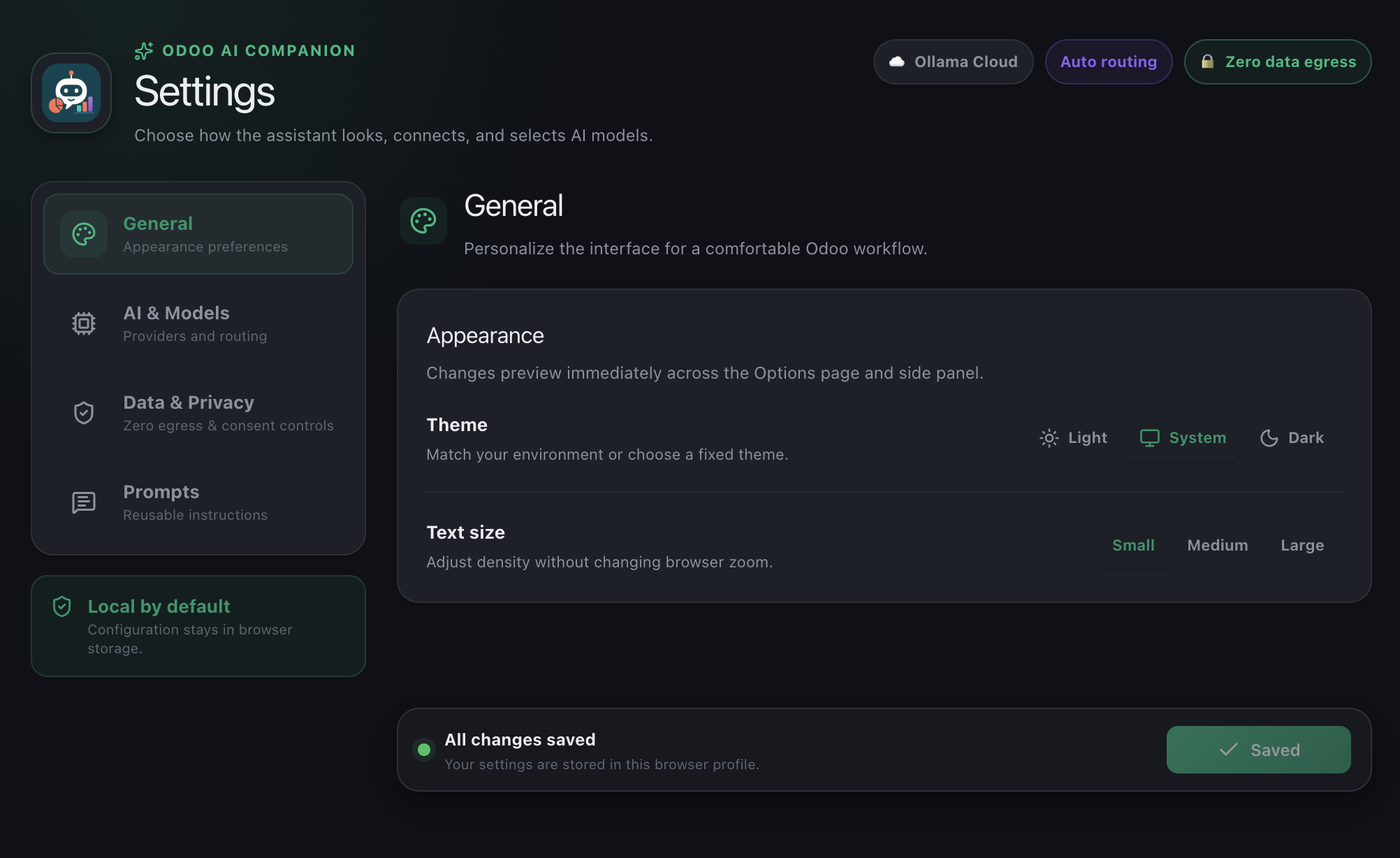
Open General to follow your system theme or choose Light or Dark, then select the text size that is most comfortable for your Odoo workspace.
Choose what the AI can see
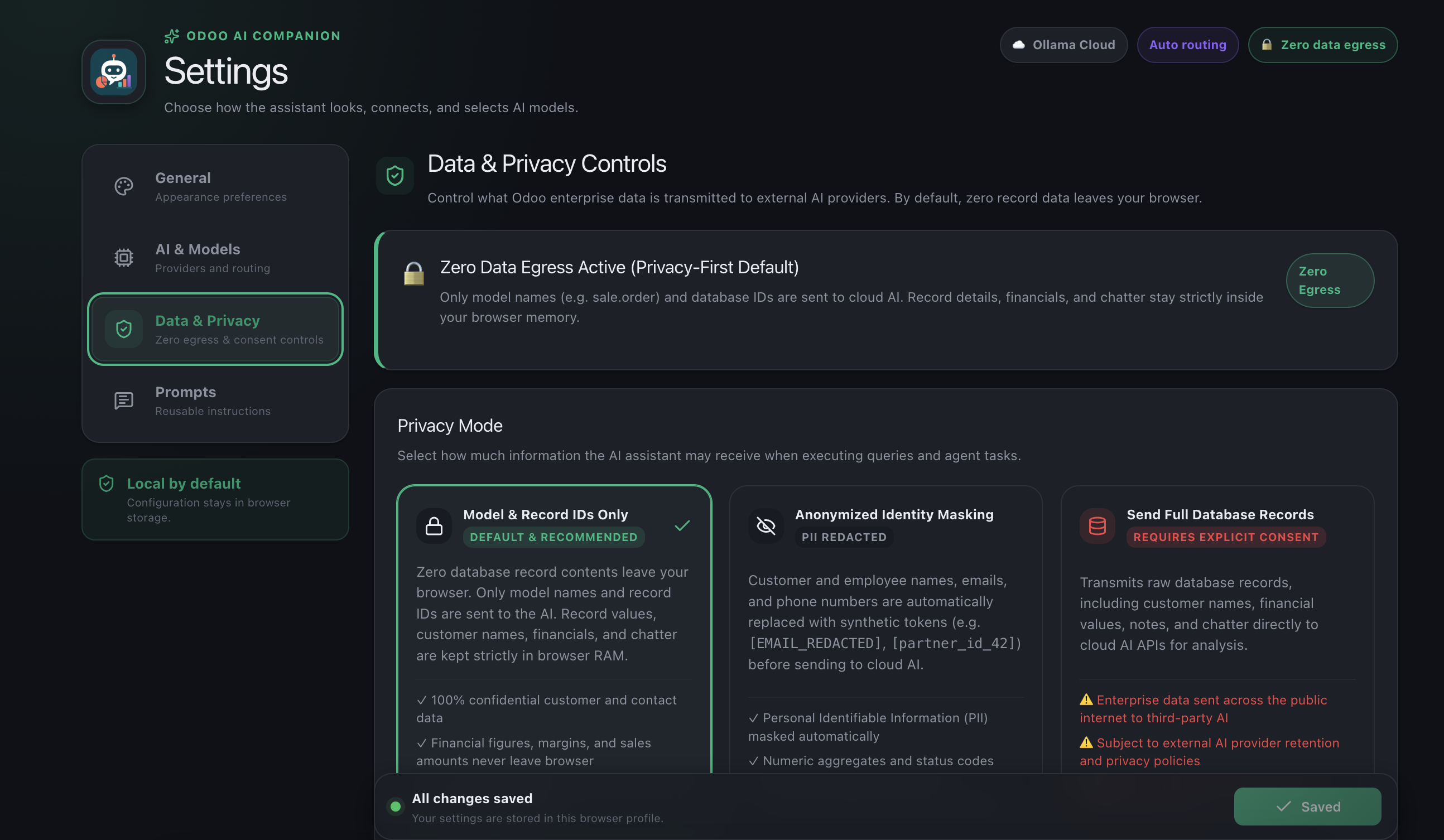
Record contents stay in browser memory. The model receives IDs, counts, numeric summaries where applicable, and status information.
Common names, emails, phone numbers, and relational labels are masked before tool results reach a cloud model.
Unredacted record content can reach your provider. It requires explicit consent and organizational authorization.
Processing can stay on a machine you control when the endpoint is genuinely local and correctly secured.
Start with IDs Only. Change modes only when your task needs more context and your organization's policy permits it. Read the complete Privacy Policy.
Open Odoo, then the side panel
- Sign in to the Odoo database you want to use.
- Open the relevant app, list, kanban board, or record.
- Click the Odoo AI Companion toolbar icon.
- Check the context bar for your Odoo version, app, model, and connection status.
The extension reuses your active Odoo browser session. It does not require your Odoo password or a separate Odoo API key.
Ask a focused first question
Chat Mode is best for one focused lookup, count, filter, or summary. State the record type, condition, time period, and desired output.
If the answer is too broad, add a date range, status, company, salesperson, or result limit. The extension also provides prompt starters based on the current Odoo context.
Save repeatable questions
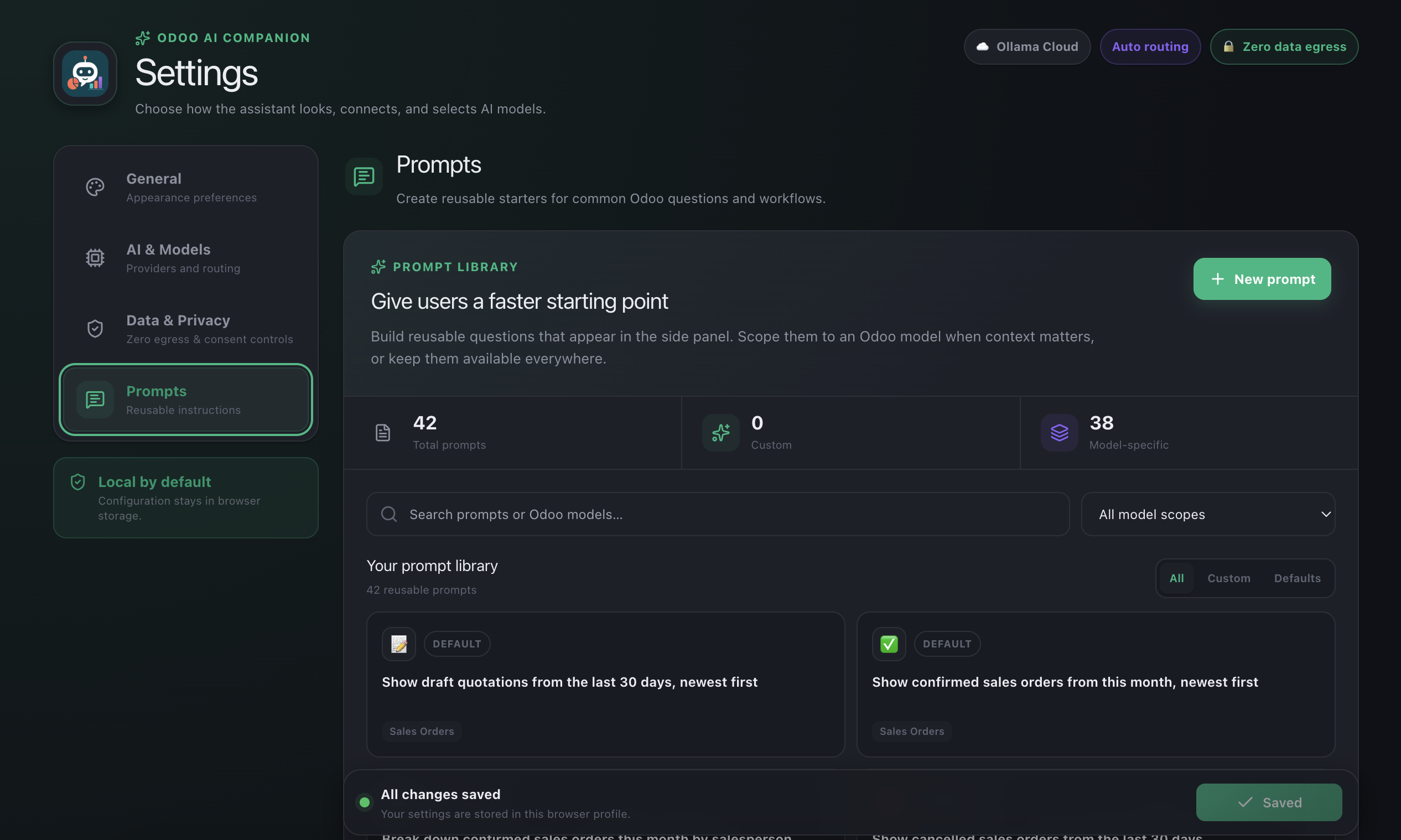
Open Prompts in Advanced Settings to search the built-in library or add a reusable prompt. Prompts can be scoped to an Odoo model when an instruction only makes sense for a particular record type.
Use Agent Mode for multi-step goals
Agent Mode is useful when the assistant must inspect fields, run several searches, aggregate data, read activities, or navigate after analysis.
- Keep the default step limit until you understand the workflow.
- Watch the run timeline and stop the agent if it moves away from your goal.
- Record-changing tools are disabled by default.
- If writes are enabled, inspect every approval card before accepting it.
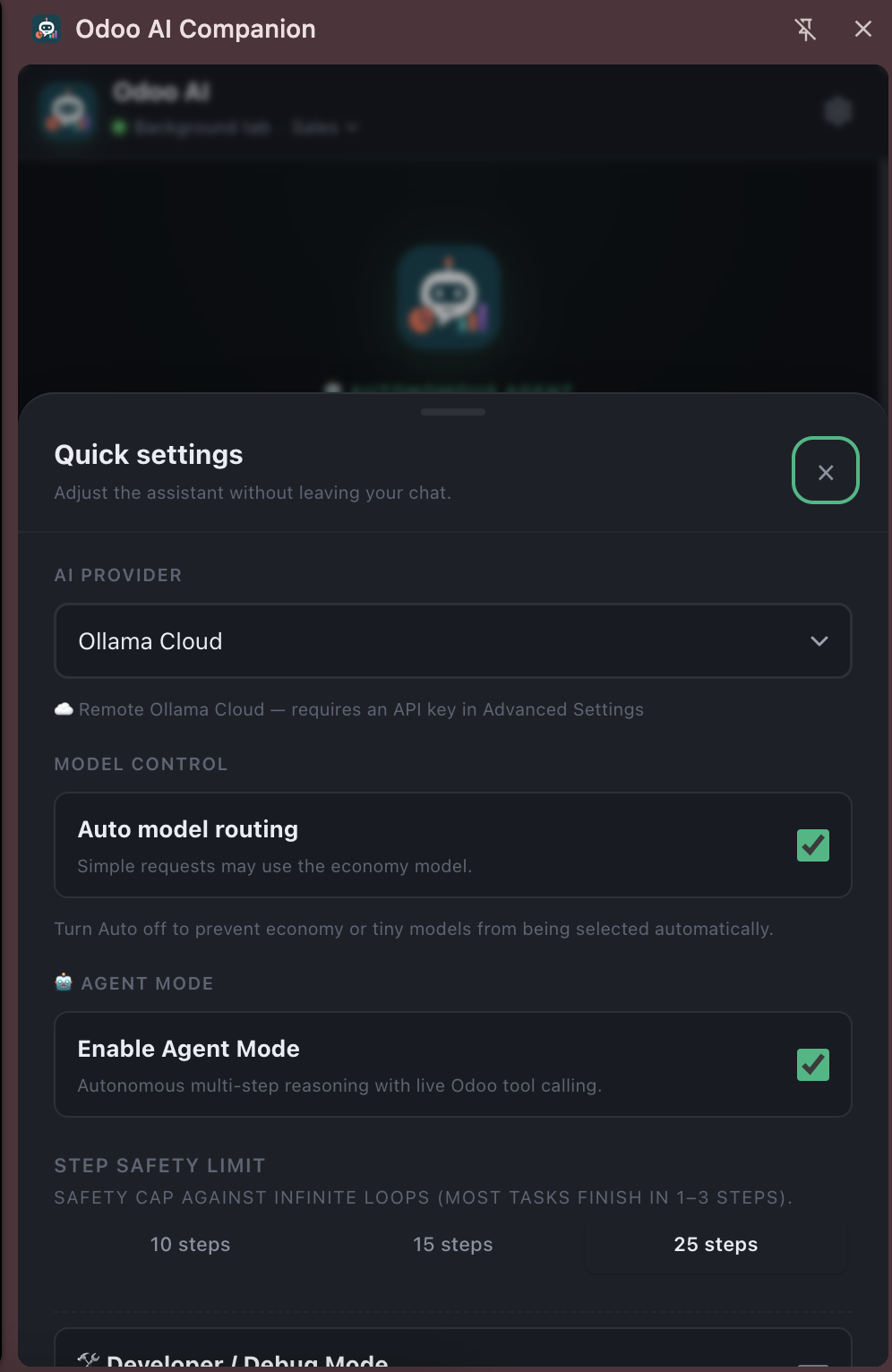
Use Quick Settings inside the side panel to switch providers, toggle automatic model routing, enable Agent Mode, and select a step safety limit without leaving the current chat.
Open, copy, or export the result
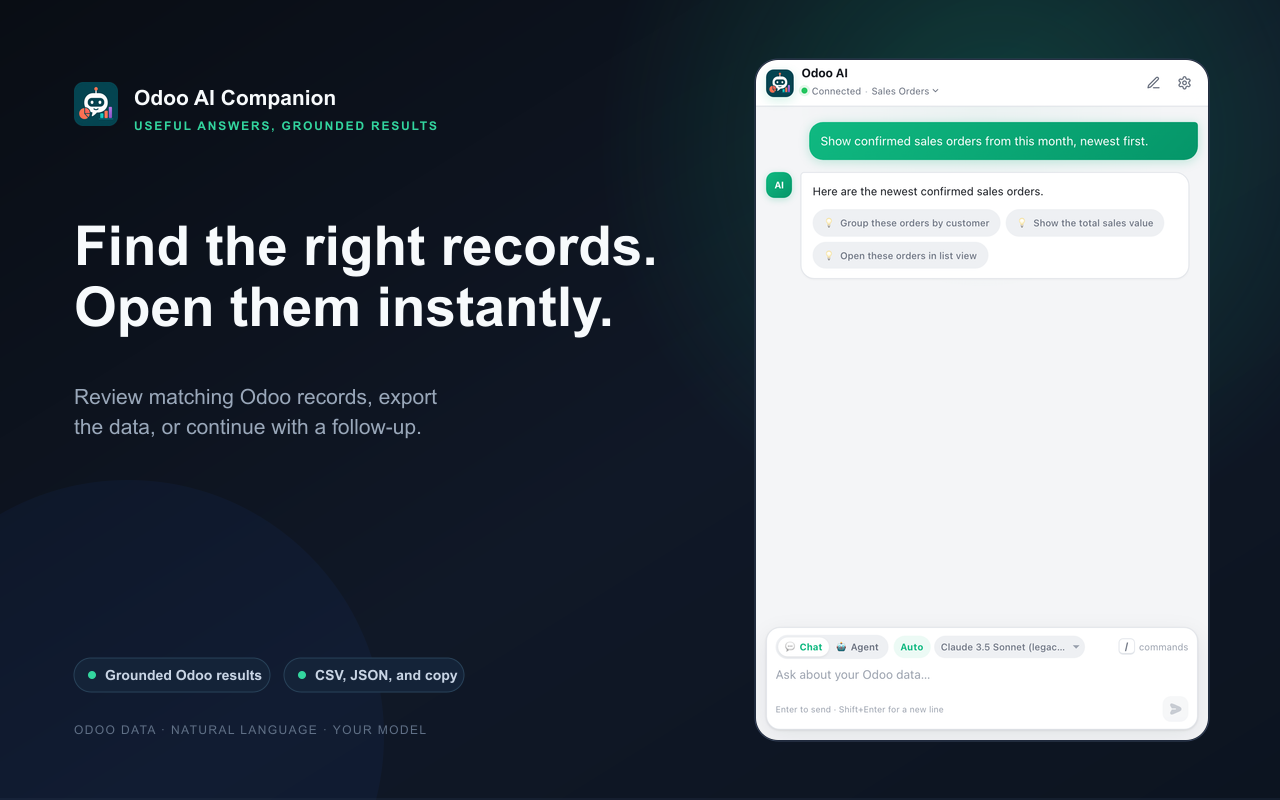
Retrieved records appear as readable result cards. Depending on the response, you can:
- open a record in the connected Odoo tab;
- navigate to a filtered list or supported view;
- download results as CSV or JSON;
- copy a table for Excel or Google Sheets; or
- ask a narrower follow-up question.
Troubleshooting
The side panel says Odoo is not connected
Confirm an Odoo page is open and signed in, refresh that tab after installing or updating the extension, then reopen the side panel.
The provider returns an authentication error
Check that the active provider matches the API key, confirm the key is valid, and ensure the selected model is available to your account.
A local model cannot be reached
Start the local server and verify its endpoint. Common defaults are Ollama at port 11434, LM Studio at 1234, and LocalAI at 8080.
The assistant cannot find a field or record
Open the relevant Odoo app, name the record type clearly, and try a smaller request. Custom modules and security rules affect available data.
Why can I not create or update records?
Modifying actions are disabled by default. Enable them explicitly in settings; Agent Mode will still pause for approval before a write.